
Progress reports for teachers and families
My First Piano can save a report of how a child is doing: a one-or-two-page PDF that looks like a school report, a spreadsheet with the same numbers, and a summary of the whole class. It works in both the Free and the Pro edition.
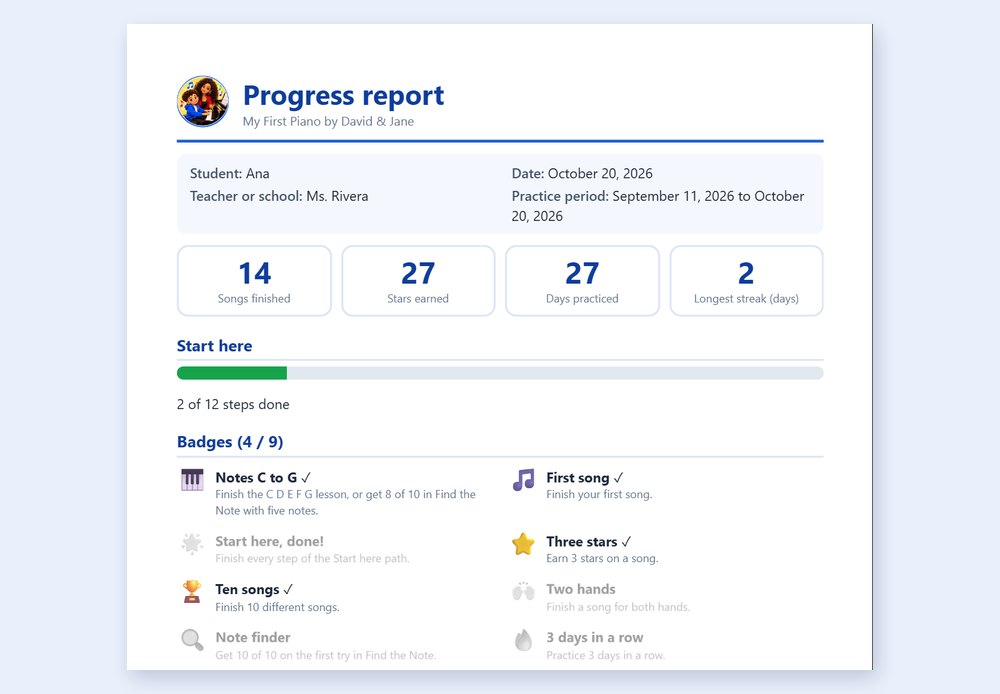
What is in the report
- The student’s name, the teacher or school, the date and the practice period.
- Four totals: songs finished, stars earned, days practiced and the longest streak of days in a row.
- How far the student is on the Start here path, and which of the nine badges they have earned.
- A practice calendar for the last 12 weeks, one square per day.
- The Find the Note game scores.
- Every song they practiced: level, times played, best accuracy, stars and the last time.
- A comments box for the teacher, and a line for a signature and a date.
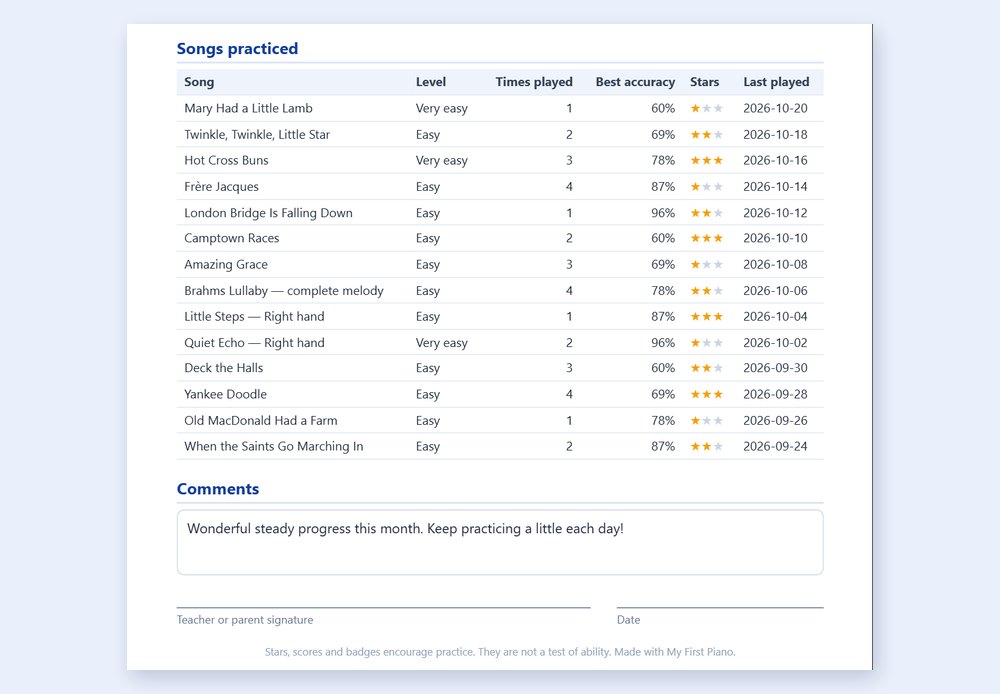
Stars, scores and badges are there to encourage practice. They are not a test of talent, and the report says so at the bottom.
How to save a report
- Open My progress in the app. Make sure the right player is selected (click the picture at the top).
- Press Save progress report (PDF).
- Check the student’s name. Add the teacher or school and, if you like, a comment. The teacher or school is remembered for next time.
- Press Create the PDF and choose where to save it.
Open the PDF in any PDF viewer to print it, or send it by email to a teacher or family. Save the numbers (spreadsheet) writes the same facts as a CSV file that Excel, Google Sheets and LibreOffice open, with accents and other languages intact.
A summary of the whole class
Give every child their own player: click the picture at the top and add a player. Each child then keeps their own stars, badges and practice days. When there is more than one player, Players shows a Class summary: Save class summary (PDF) makes one table with a row for every player (songs finished, stars, days practiced and badges, best first), and the spreadsheet button saves the same table as a CSV file.
Ideas for teachers and parents
- Save a report at the end of each month or term, and add a comment to cheer the child on.
- Send the PDF home so parents can see the practice calendar. Green squares show which days the child played.
- Use the Class summary to see who needs a little help, or who is ready for the next song.
- Moving to another computer or to the Pro edition? Save the player to a file in Players and load it there: the progress comes along, and so do the reports.
- The report is written in the language the app is set to: English, Spanish or Portuguese.
Private, on your computer
The report is made on your own computer and saved where you choose. Nothing is uploaded, and there is no account. The progress behind it stays in the app on that computer, as described in the Privacy Policy.