Getting started
From the Microsoft Store to your first song in a few minutes.
1. Get the app
Install My First Piano from the Microsoft Store (Free to start; Pro adds the full library and more). It needs Windows 10 or 11, see the system requirements.
2. Connect your piano
- Plug the USB cable from your digital piano into the computer, then turn the piano on before you open the app.
- Open the app. It looks for your piano by itself. If it does not find it, open Connect my piano and press Check again.
- Press Middle C on the piano. When the check marks turn green, you are connected.
3. Play your first song
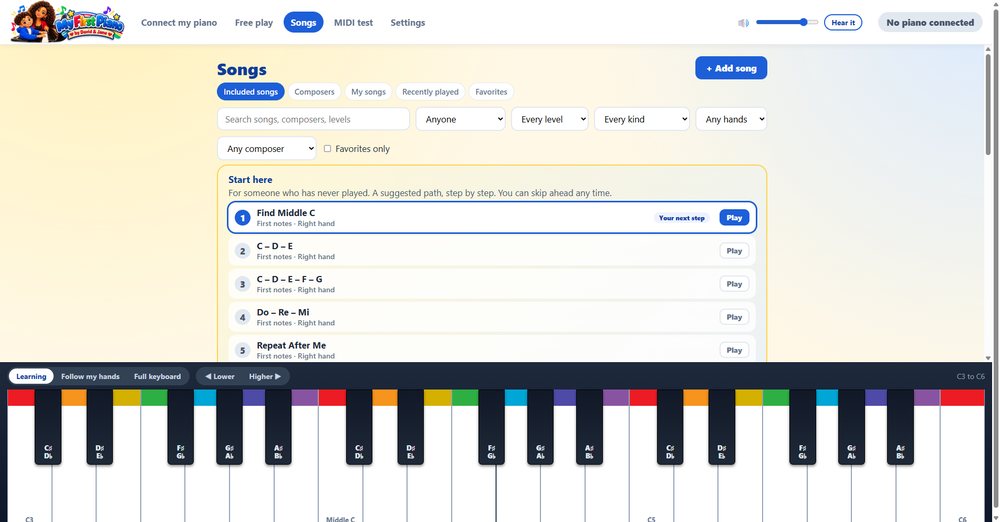
- Open Songs. The Start here path takes you from the very first notes to your first song with two hands.
- Press Play, then Start. Notes fall onto the keys. Play each one when it lands.
- “Wait for me” stops until you find the right key. “Follow the beat” keeps moving, like a real lesson.
- At the end you earn stars, and the app shows the notes you can practice.
Good to know
- Add your own songs (Pro): type the notes, record your piano, or import MIDI and sheet music, in any language. How to add songs.
- Colors and names on the keys match the companion book, My First Music Book. You can turn any of them off in Settings.
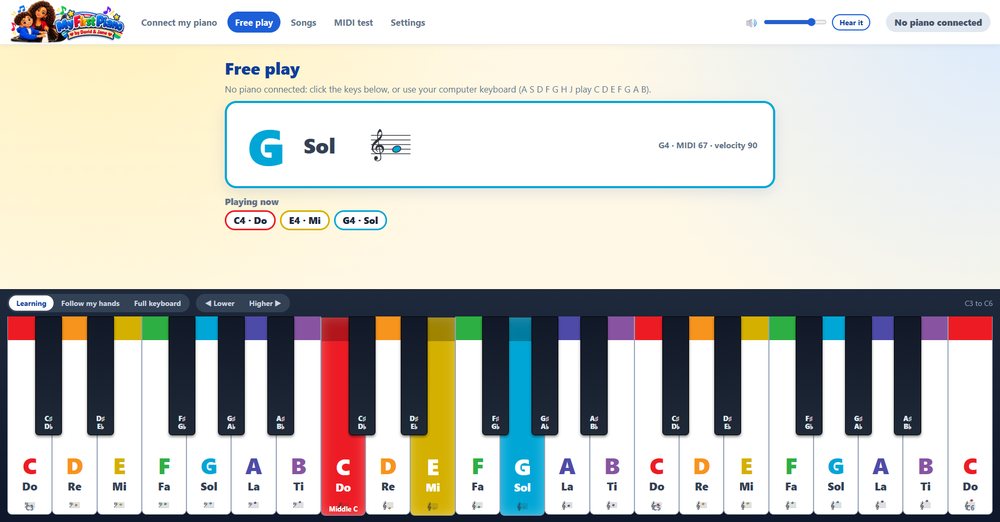
- No piano? Click the keys on the screen, or use the computer keyboard (A S D F G H J play C D E F G A B).
- Sound: your digital piano makes its own sound, so the app stays quiet when you play it. You can change that in Settings.
- Everyone in the family can have their own player with their own progress. Click the picture at the top.
- My progress shows stars, days in a row and badges. You can also save a progress report as a PDF for a teacher or family. How reports work.
- Language: English, Spanish and Portuguese, in Settings.
- Practice speed goes from slow to faster than normal, and you can practice one hand at a time.
Stuck? The app has a short Help (the ? button), and Support has answers to the usual questions.